WEEK 3: Object Behavior Modification and Adding MotivesWORKING WITH SOUNDS AND ANIMATIONS (continued)
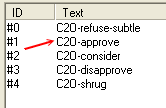
A2O-approve Take care not to write down a zero; that is a capital O (oh) which stands for Object. Click OK, and let's go take a look at the child animations. Double click #130: "c2o", and notice that the same animations are available to children. Not all objects have identical adult/child animations. That is a consideration you have to take into account when making objects available to children. You can make a child use adult animations, but they will appear slightly off in the game because children are shorter.
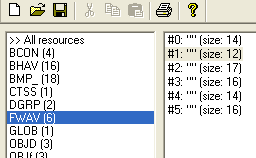
Write down the animation name for the child's "approve", again, taking care to be precise: C2O-approve Click OK, and we'll go explore yet another section, to find appropriate sounds to compliment our animation. Select FWAV. Notice to the right we have 6 WAV sounds available, but they don't say what they are. All we have is a set of open and close parentheses for a description.
|