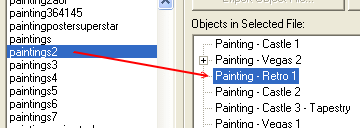
WEEK 3: Object Behavior Modification and Adding MotivesFinding The Right Painting (continued)All Others: If you have some, most, or all expansion packs installed EXCEPT for Super Star and Makin' Magic, find "Paintings2" in Tmog and then look to the right. Select "Painting - Retro 1", and clone it.
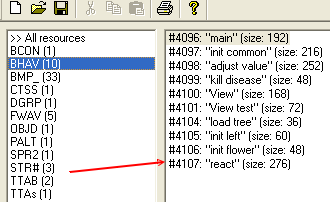
Don't worry, these are the correct paintings. I'm not so cruel as to send you on another wild goose chase. Or am I? COMPLETING THE CHAIRBack to the Lesson: Once your paintings are cloned, go into the Edit section and type in something to let you know that the clone is only for testing purposes. Close Tmog, and open IFF. Bring your painting into IFF, and then select the behaviors section so we can take a look. Look at the picture below, notice the react behavior?:
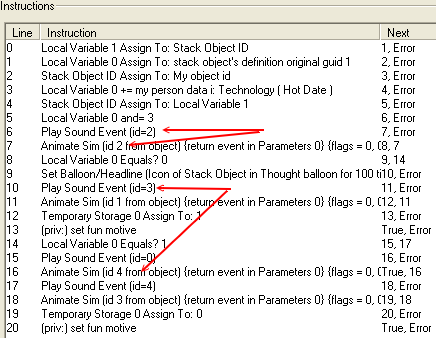
Double click Behavior #4107 "react", and then rewrite the lines. Take a look at the lines to which the red arrows are pointing. Everyone's screen should look basically the same in that you will all see lines of code such as the ones the red arrows are pointing to. All those are animations and sounds associated with the "react" behavior triggered by Sims when they view the painting. These animations and sounds are what Sims use to either approve or disapprove of the object in question. In this case, the painting. We have the ability to borrow all sounds and animations and put them to other uses as we see fit.
Fig. 1.32
|